21+ Genius Triple Monitor Setup Ideas to Boost Comfort and Productivity
You’ve got three monitors sitting on your desk. Or maybe you’re planning to get there. Either way, you’re probably asking the same question everyone asks before diving in: how do I actually arrange these things so they work for me and not against me?
It’s a fair question. A triple monitor setup sounds amazing in theory. In practice, it can turn into a cable nightmare with screens at wrong angles and your neck paying the price by Thursday. The good news? There’s a layout for every kind of worker, gamer, and creator. You just need to find yours.
This guide walks you through 21 real-world triple monitor setup ideas, each one built around a specific workflow or lifestyle. Whether you’re editing video, running data dashboards, streaming, or just want every tab visible without switching, there’s something here for you.
The Surround View Setup
If you want to feel like you’re sitting inside your workspace rather than just looking at it, the surround view arrangement is the one. Three screens curve around you in a gentle arc, with the center display sitting straight ahead and the two side monitors angled inward at roughly 30 to 45 degrees each.
This is a popular choice for simulation enthusiasts and racing or flight game players. It creates genuine peripheral coverage that adds serious immersion. But it’s not just for gaming. Architects, 3D artists, and anyone doing spatial design work tends to love it because it lets them see a full project panorama without scrolling or zooming out constantly.
The key to making it work is getting the viewing distances right. Your center screen should sit at arm’s length. The side panels need to be close enough that your eyes don’t have to work hard to read them. A good set of adjustable monitor arms helps you dial this in without guessing.
One thing to watch: color calibration across screens matters a lot here. If one display is warmer or cooler than the others, the seam between them becomes visually jarring. Spend fifteen minutes matching brightness and color temperature across all three. Your eyes will thank you.
Also Read: Dual Monitor Setup Guide 2026: Create the Perfect Productivity Workspace
The Productivity Powerhouse Setup
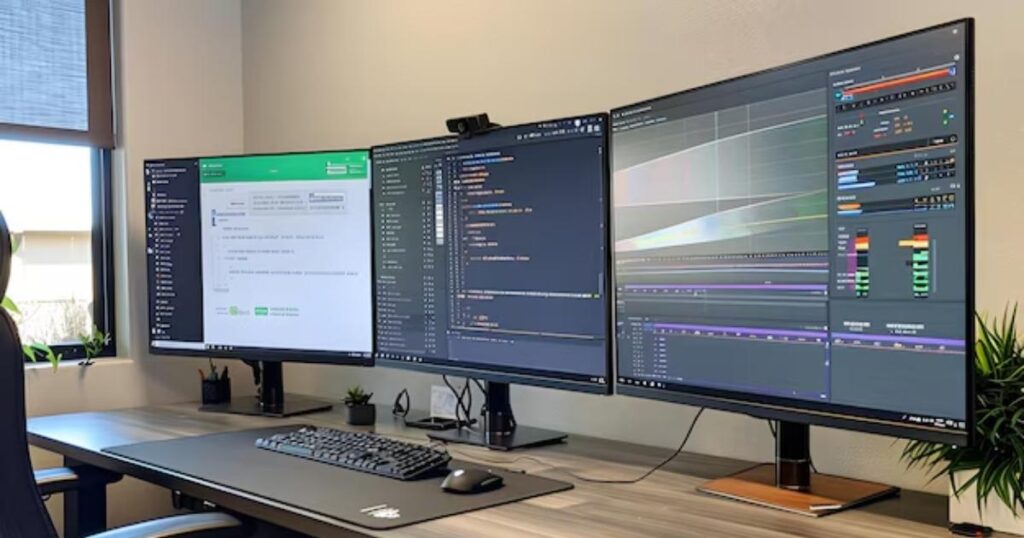
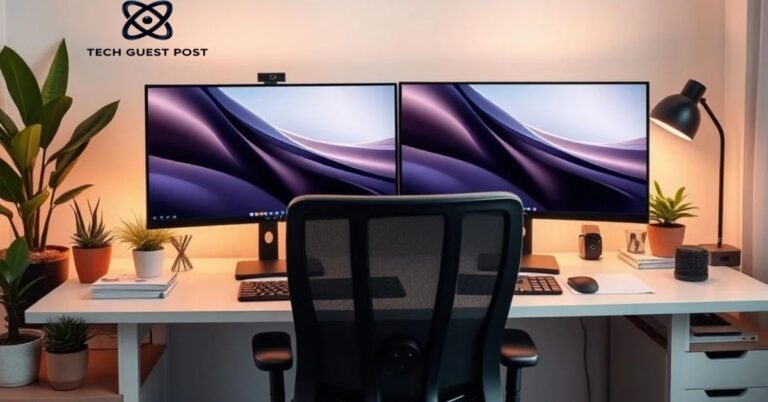
This is the triple monitor setup most office workers and remote professionals reach for. The idea is simple. One large primary display sits center stage for your main work, a second screen to one side holds your communication tools like email and Slack, and the third handles reference material, dashboards, or a secondary browser.
The productivity powerhouse setup shines in hybrid work environments where you’re juggling multiple applications simultaneously. Think about a project manager running a Zoom call on one screen, tracking tasks on another, and responding to emails on the third. No alt-tabbing, no lost windows, no context switching every two minutes.
What makes this setup click is intentionality. You have to decide what each screen is for and stick to it. When your screens have defined roles, your brain starts associating each one with a specific mode. The center screen means focused work. The right screen means communication. The left screen means reference. That mental separation is surprisingly powerful for concentration.
The Asymmetrical Setup
Not every desk is wide enough for three equally sized monitors lined up in a row. And honestly, three matching screens aren’t always the most ergonomic or practical choice anyway. The asymmetrical monitor layout solves both problems at once.
In this arrangement, one larger display serves as your primary workspace while the other two are smaller or positioned differently, perhaps at different heights or angles. It’s a visual workspace optimization trick that prioritizes your dominant eye and your natural head position rather than forcing symmetry for symmetry’s sake.
Writers, researchers, and legal professionals often gravitate toward this layout. You might have a wide 27-inch display for document work, a portrait-oriented secondary screen beside it showing reference notes, and a smaller third display sitting further to the side for chat or system monitoring. It looks a little unconventional. It works extremely well.
The Stacked Trio Setup
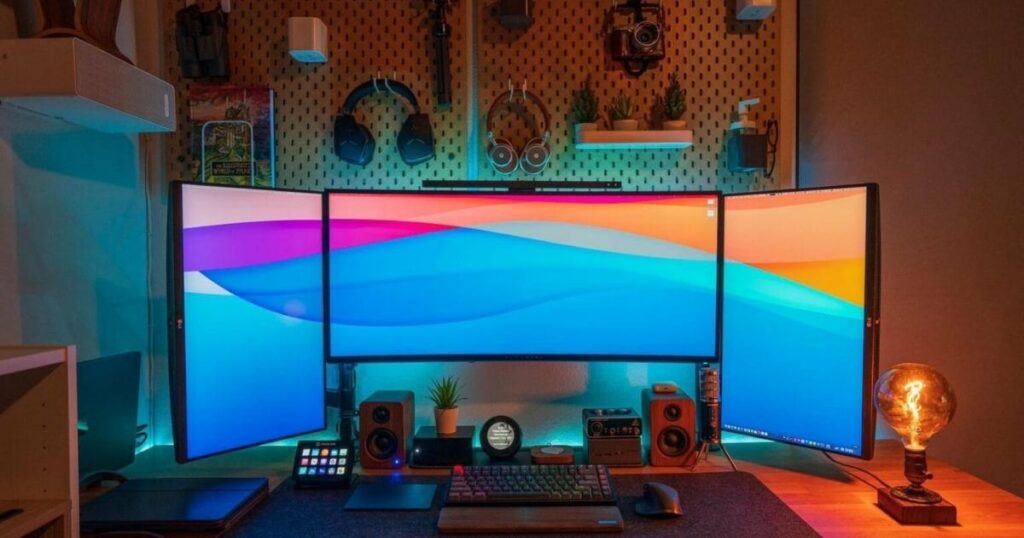
Horizontal space is precious. Desk space is even more precious. If you’re working in a compact area or you simply don’t want your setup sprawling five feet wide, the stacked trio configuration uses vertical real estate instead.
Two or three screens stack on top of each other using a vertical monitor arrangement with a sturdy pole-mounted system. The top screen usually handles secondary content like dashboards or reference tabs. The middle screen does most of the heavy lifting. The bottom screen handles utility windows that you glance at rather than stare at.
This layout works especially well for developers and data analysts who need to see multiple terminal windows, code files, or spreadsheet rows simultaneously without scrolling. It’s also surprisingly natural once you get used to it. Humans look up and down fairly easily. The strain typically comes from twisting your neck sideways, not from a little vertical eye movement.
Just make sure your monitor mount can handle the weight. Not all monitor arms are rated for a full vertical stack. Check the specs before you buy.
The L-Shaped Setup
The L-shaped desk setup is one of the most practical and popular configurations for people who do a mix of focused work and collaborative tasks. Two monitors sit side by side on the main desk surface, and the third sits on the return section of the L, angled toward you on your peripheral side.
This layout naturally separates your primary work zone from your secondary zone. The monitors on the main desk get your full attention. The screen on the return side handles notifications, video calls, or background tasks that need occasional glances rather than constant focus.
It’s a great fit for content creators, managers, and anyone who needs a distinct space for creative output versus administrative work. The physical separation that the L-shaped desk creates reinforces a mental separation too. When you turn your chair to face the return, you’re switching modes. It keeps your primary workspace clean and dedicated.
The Ultra-Wide Hybrid Setup
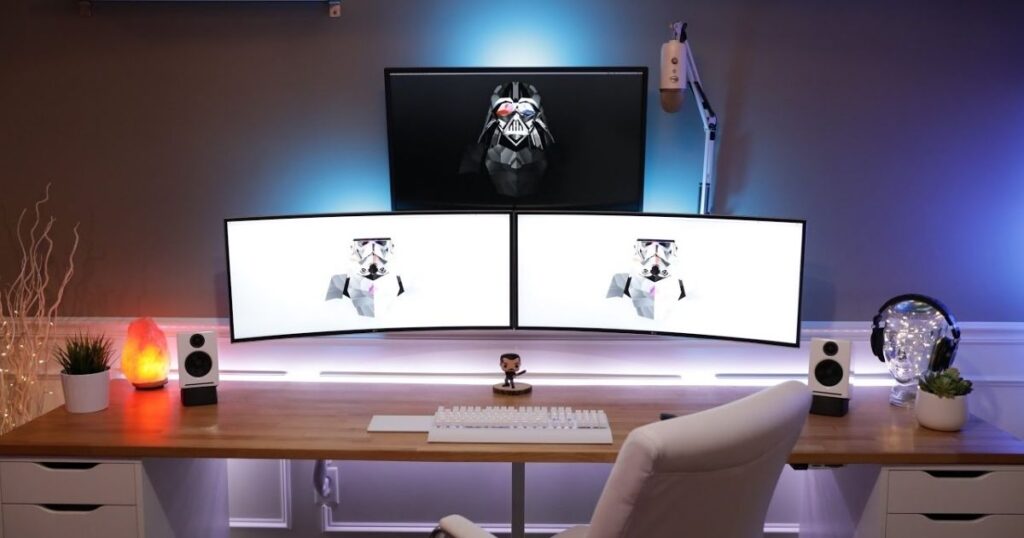
An ultra-wide monitor combination pairs one very wide display, often 34 inches or wider, with two standard screens flanking it on each side. The center ultra-wide handles everything that benefits from extra horizontal space. Spreadsheets with many columns, video timelines, panoramic design work. The standard side screens handle everything else.
This is a clever approach for video editing workspaces and content creation stations because the wide center display gives you a full timeline view without the seam you’d get from two separate monitors placed side by side. The color consistency is better too since you’re only dealing with one panel for critical color work.
It’s worth noting that screen resolution alignment becomes slightly tricky here. The ultra-wide will typically have a different resolution and pixel density than your standard screens. Most operating systems handle this gracefully now, but you may need to tweak display scaling settings to make everything feel consistent.
The Mobile Integration Setup
Hybrid work has blurred the line between desktop and mobile workspaces in ways nobody predicted a decade ago. The mobile integration setup leans into that blur on purpose. Your three-monitor desktop arrangement connects to your laptop or tablet as an additional display, creating a cohesive multi-screen workstation that works whether you’re fully docked or partially portable.
This is especially valuable for people who split their time between home and office. When you’re docked at your home station, all three screens are active and you’re in full productivity mode. When you unplug and go, your laptop carries the essential setup. Nothing gets lost in translation because your workflow tools are already configured to span the displays intelligently.
Apps like Duet Display or sidecar features built into macOS make this kind of integration surprisingly seamless now. It’s a remote work station approach that doesn’t force you to choose between mobility and power.
The Streaming Command Center
Live streamers, podcasters, and content creators who work in front of an audience need to manage a lot of simultaneous information. The streaming command center layout addresses this directly. One screen faces the camera and shows your primary content or game. A second screen runs your streaming software, chat feed, and alerts. The third handles production tools, sound mixing, or a browser for research and coordination.
This isn’t just about convenience. During a live broadcast, you can’t afford to mouse around hunting for windows. Every second of awkward fumbling is visible to your audience. Having a dedicated live streaming setup where each screen has a non-negotiable role eliminates that problem entirely.
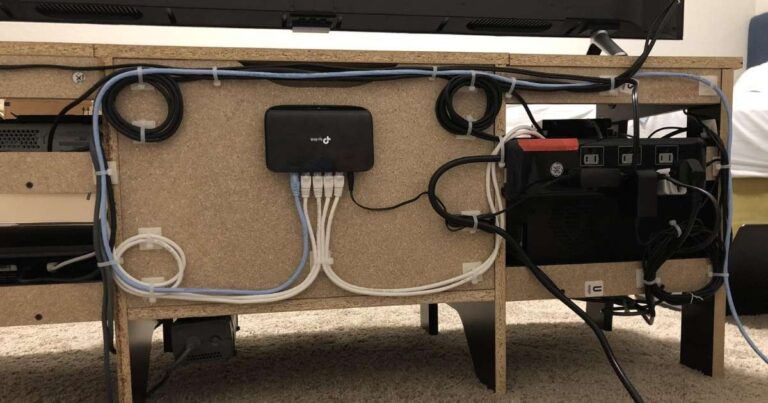
The key addition most streamers overlook is proper cable management behind the setup. A streaming command center with visible cable chaos sends the wrong signal. Clean it up with cable raceways or a simple cable management tray. It makes the whole operation look more professional on camera too.
The Mixed Resolution Setup
Mixed resolution monitors in a triple arrangement can be either a frustration or a feature, depending on how you handle it. If you just slap three screens together without thinking about which resolution goes where, you’ll get text that looks fine on one display and blurry on the next, or windows that snap to the wrong size when you drag them across screens.
But when you plan it deliberately, a mixed resolution setup is actually quite practical and cost-effective. Put your highest resolution display in the center for tasks that demand detail. Use lower resolution panels on the sides for utility windows, chat applications, or reference material where pixel density matters less.
The key is configuring your display settings correctly. On Windows, use the scaling controls per-display. On macOS, manage resolution per screen through the Displays preference pane. Once calibrated, the transitions between displays feel natural and you stop noticing the differences.
The Dual Portrait, Single Landscape Setup
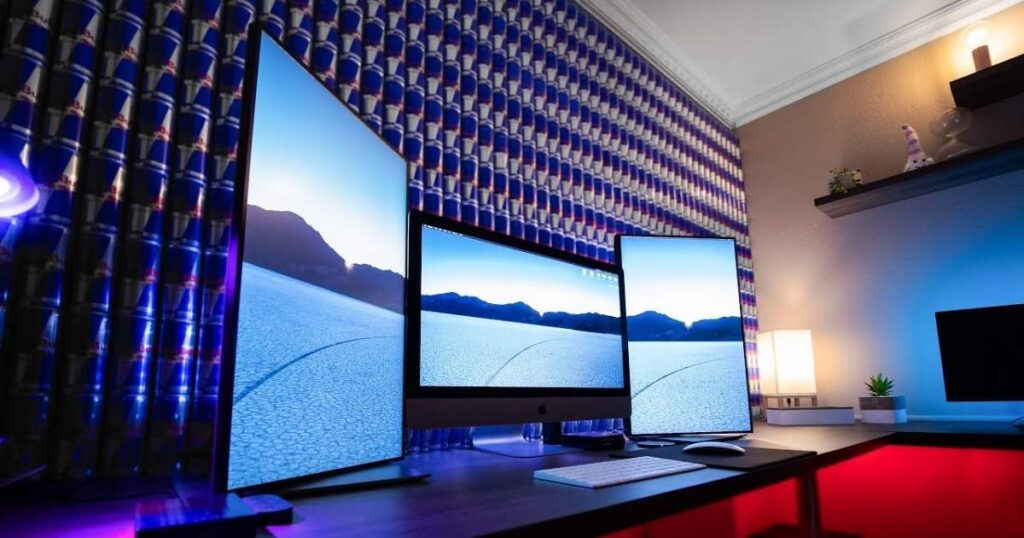
Here’s a layout that looks unusual at first glance but makes perfect logical sense for certain workflows. Two monitors rotate into portrait orientation, one on each side, while the center screen stays in the standard landscape position.
Writers love this one. A portrait-oriented screen shows you far more of a document at once without scrolling. If you’re working in long-form content, research papers, legal documents, or code, having two tall portrait displays flanking your landscape center screen is genuinely transformative. You can see your reference document fully on the left, your writing window in the center, and your outline or notes on the right, all without moving your eyes far.
Software developers who work with long files of code particularly benefit here. The portrait screens accommodate hundreds of lines of code in a single glance. Combined with a landscape center screen for browser testing, it creates an exceptionally focused software development workspace.
The Dual Landscape, Single Portrait Setup
The reverse arrangement works equally well for a different kind of user. Two standard landscape monitors plus one portrait screen on the side creates a setup that keeps horizontal space dominant while adding a dedicated vertical zone for specific content types.
Social media managers tend to gravitate here. Your social scheduling tool and analytics dashboard sit on the two landscape screens. The portrait monitor shows a mobile-view simulation of how your content will look on phones, which is where most of your audience is reading it anyway. It’s one of those small ergonomic adjustments that has an outsized effect on work quality.
Data analysts running dashboards also find this layout useful. Wide landscape screens for data tables and charts, with a portrait screen showing a live metrics feed or documentation reference beside them.
The Swivel Arm Setup
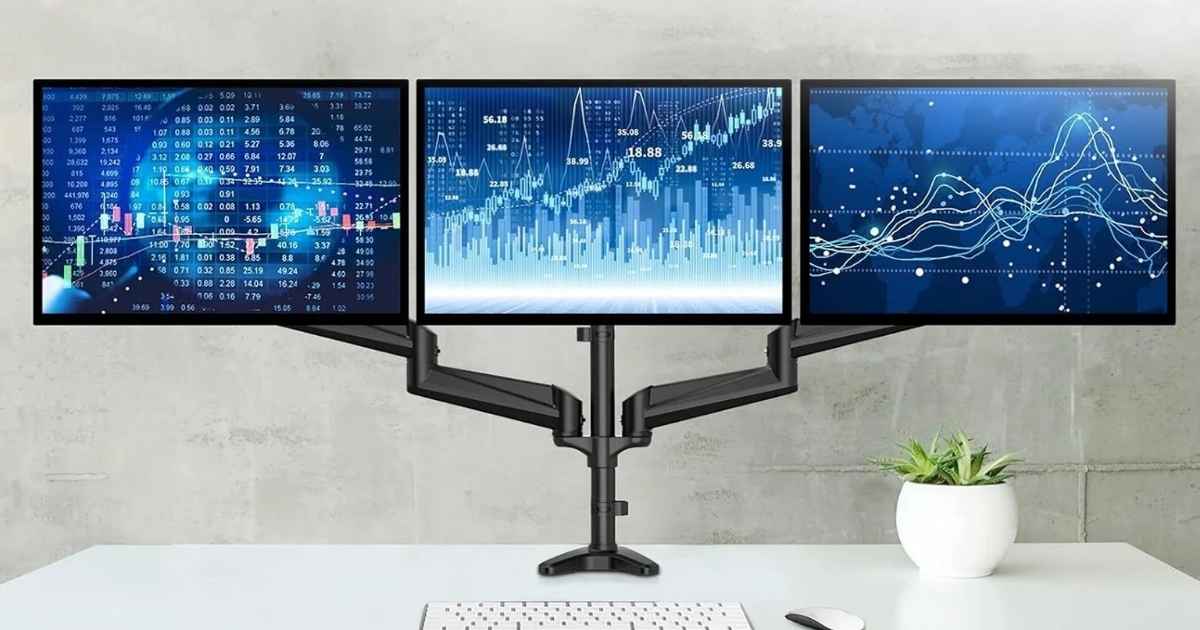
The adjustable swivel arm setup is less about a fixed arrangement and more about flexibility as a core feature. Each monitor sits on its own independently adjustable swivel arm setup, meaning you can rotate, tilt, or reposition any screen in seconds without tools.
This is ideal for collaborative workspaces where you sometimes need to swing a monitor around to show someone else. It’s also great for people whose work shifts throughout the day. In the morning you might want all three screens forward-facing for data work. By afternoon you’ve rotated one to portrait for writing. In the evening it shifts back for video consumption.
Quality monitor mount accessories matter here more than anywhere else. Cheap arms wear out their tension mechanisms and start drooping within a year. Invest in arms with proper gas-spring mechanisms rated for your monitor weights. The ergonomic desk layout benefits you only if the hardware stays where you put it.
The Vertical Sandwich Setup
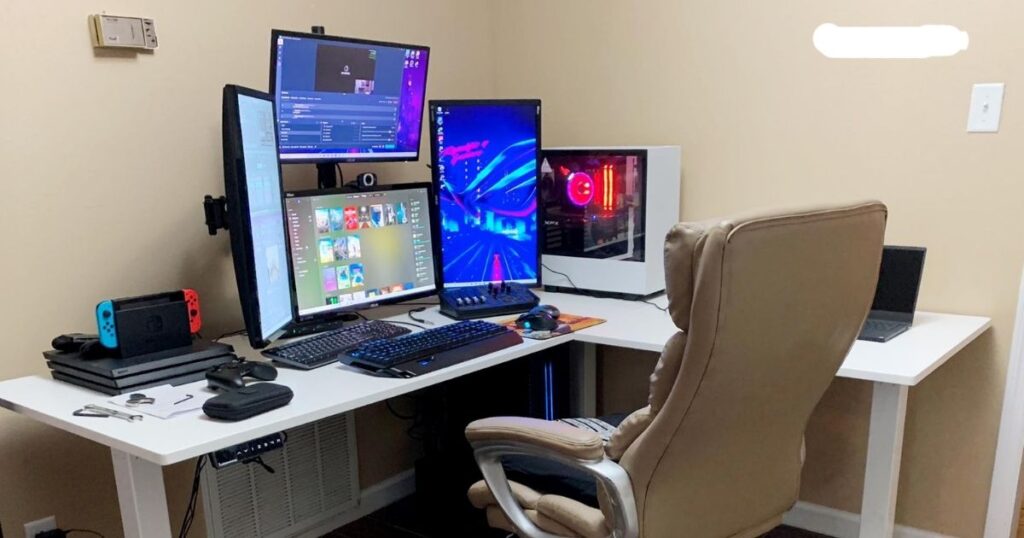
The vertical sandwich monitor setup is a niche but genuinely clever configuration for users with deep desks. The main landscape monitor sits at eye level in the standard position. A second landscape screen sits below it, slightly reclined, like a lectern angled toward you. A third, smaller display or tablet sits above the main monitor on a high-mounted arm.
The lower screen typically handles persistent reference material, a document you’re copying from, a spreadsheet row, or a map. The upper screen shows alerts, a communication feed, or a clock and system status display. Your eye naturally moves up and down, keeping your neck straight and your posture better than the side-to-side arrangement most people default to.
It’s not a layout for everyone. But for people who want to minimize desk width usage and have sufficient depth, the vertical sandwich is a surprisingly ergonomic solution.
The Floating Monitor Setup
A floating monitor arrangement takes the setup off the desk entirely. All three screens mount to a single heavy-duty wall mount or a triple-arm ceiling drop system, leaving the desk surface completely clear below them.
The benefits are significant. You reclaim your entire desk as an open workspace for physical materials, drawing tablets, hardware, or simply clear thinking space. Cables route upward and behind the wall rather than cluttering the desk surface. The whole setup looks cleaner and feels less enclosed.
The main challenge is that wall mounts require more careful planning. You need to locate studs or use proper anchors, route cables cleanly to wall outlets or conduit, and accept that repositioning is harder than with a desk-mounted arm. But for creators who split their time between physical and digital work, a clean desk underneath floating displays is a genuine game-changer.
The Triple Curved Setup
Three curved displays, all matching or graduated in size, create the most immersive non-VR workspace you can build. The curve of each screen naturally directs your gaze inward, and when three curved panels sit side by side, the entire visual field feels like a single cohesive environment rather than three separate rectangles.
Gaming multi-display setups commonly use this configuration, but it’s equally compelling for financial traders watching multiple market feeds, security professionals monitoring camera systems, or anyone whose work benefits from a panoramic information view.
Color calibration across screens is critical with this layout. Curved panels from different manufacturers, or even different production batches of the same model, can have subtle color differences. Use a colorimeter to calibrate them to a shared target, especially if you’re doing any color-sensitive creative work.
The Focused Center Setup
Not every setup needs to distribute attention equally across three screens. The focused center display approach does the opposite. A large, high-quality center monitor gets all your best-work attention, and two smaller or lower-resolution side displays serve purely as utility surfaces.
Think of it like a stage and wings. The center screen is where the performance happens. The sides are backstage. Your email client lives on the side. Your music player lives on the side. Your task list lives on the side. Everything that wants attention but doesn’t deserve your best cognitive focus goes to the periphery.
This is a surprisingly effective approach for people who struggle with distraction. When your side screens are physically smaller and lower quality, you’re less tempted to focus on them. The center pulls your attention naturally. It turns a multi-display setup into a focus tool rather than a distraction multiplier.
The Curved + Flat Combo Setup
The curved plus flat combo monitors setup pairs a curved center display with flat panels on the sides. It’s a pragmatic choice for people who want some of the immersive quality of a curved center screen without committing to the cost of three matching curved panels.
The center curved monitor wraps your focal zone in a way that feels natural and reduces eye strain during long work sessions. The flat side screens handle peripheral content that doesn’t need the same visual comfort treatment. It’s also simply more affordable than an all-curved configuration, which matters when you’re speccing out a full workstation.
The aesthetic does take some getting used to. Curved and flat panels look visually distinct, especially when they’re side by side. If that bothers you, choose side panels that at least match the bezel style and color of your center screen to maintain some visual cohesion.
The Minimalist Setup
Three monitors and minimalism might sound like contradictory concepts. They’re not. A minimalist triple setup is about reducing visual noise, not reducing screen count. All three monitors match exactly in size, model, and finish. They sit on ultra-thin mounts that keep bezels close and gaps minimal. Cable management is invisible. No desk clutter surrounds them.
The result is a setup that expands your workspace without demanding visual attention. The screens disappear as objects and become simply a field of information. This is the aesthetic goal of the minimalist approach, and it works remarkably well in home office environments where the workspace doubles as a living space.
Software for multiple monitors like DisplayFusion or Macs Fan Control can help keep your desktop wallpaper and taskbar behavior consistent across all three screens, which is the final detail that makes a minimalist arrangement feel polished rather than patched together.
The Adjustable Height Setup
Ergonomics shouldn’t be a secondary concern with any multi-screen workstation. The adjustable height setup makes it the primary one. Every monitor sits on an individually adjustable arm that allows height, tilt, and angle changes on the fly. The desk itself is a sit-stand model.
The point is that your body changes position throughout the day, and your screens should follow. When you’re standing, the displays rise. When you’re seated, they lower. When you’re in deep focus mode, you angle them slightly inward. When you’re on a video call, you adjust the center screen to camera height.
This kind of ergonomic angle adjustment pays off not just in daily comfort but in long-term health outcomes. Neck strain, eye fatigue, and back pain all trace partly to static monitor positions that don’t adapt to the user. A setup that moves with you is a setup that sustains you.
The Collaborative Workspace Setup
Not every triple monitor arrangement is built for solo work. The collaborative workspace setup is designed with other people in mind. Two monitors face forward for your own use. The third sits on a swivel arm and can rotate to face a colleague sitting across or beside your desk, turning into a shared reference screen instantly.
This is a smart configuration for design reviews, client meetings, or any role where you frequently need to show your work to someone else without them having to crowd behind you. When the meeting is over, the third screen swings back into your regular working arrangement.
In open-plan offices and co-working environments, this kind of adaptable layout signals a collaborative mindset too. It’s a small detail, but people notice when your setup is built to include them rather than wall them out.
The Gaming + Productivity Hybrid Setup
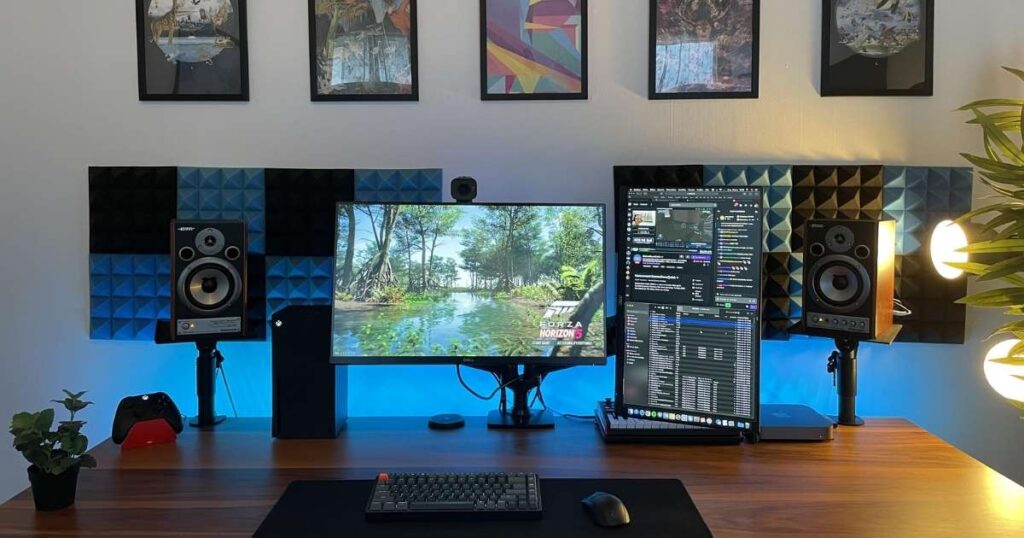
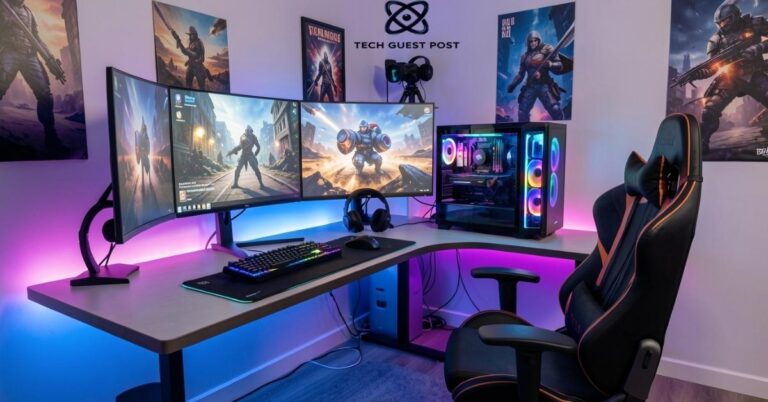
Many people now use the same desk for both serious work and serious gaming. The gaming plus productivity hybrid setup accounts for both without compromising either. A high-refresh-rate center display, typically 144Hz or higher, handles gaming. Two standard refresh-rate screens flank it for productivity use during work hours.
During the workday, all three screens function as a standard multi-screen workstation with the usual productivity zones. When it’s gaming time, the center screen takes over as the primary game display and the side screens flip to showing a Discord overlay, game guides, YouTube, or a stream chat feed.
The software configuration here matters. Tools like NVIDIA Surround or AMD Eyefinity can span a game across all three displays when the game and setup support it. But most users find that keeping the game on the center screen and utility content on the sides is the more practical day-to-day approach for a true hybrid lifestyle.
FAQ’s
What is the best triple monitor setup for productivity?
The productivity powerhouse arrangement with one center screen for primary work and two side screens for communication and reference is widely regarded as the most effective layout for day-to-day office and remote work tasks.
Do all three monitors need to be the same size for a triple monitor setup?
No, they don’t. Asymmetrical and mixed resolution setups intentionally use different screen sizes, and many users find that a larger center display with smaller side screens actually improves focus and reduces distraction.
How do I reduce neck strain with three monitors?
Position your center screen directly in front of you at eye level and use adjustable monitor arms to angle the side displays slightly inward. Keeping the side screens for peripheral glances rather than primary content also helps reduce how often you turn your head.
What software helps manage a triple monitor setup?
DisplayFusion on Windows and the built-in Displays settings on macOS are the most widely used tools. They help with wallpaper management, taskbar configuration, and window-snapping behavior across all three screens.
Is a triple monitor setup worth it for gaming?
Yes, particularly for simulation, racing, and flight games that support surround view configurations. For competitive multiplayer gaming, many players prefer keeping one high-quality center screen and using the side monitors for utility content like Discord or streaming tools instead.
Conclusion
There’s no single right answer when it comes to arranging a triple monitor setup. The best configuration is the one that fits your actual daily workflow, your physical desk constraints, and how your brain naturally organizes information.
If you spend most of your day writing and researching, the dual portrait plus single landscape arrangement probably fits you best. If you stream, the command center layout is built for you. If ergonomics and adaptability are your top priority, the adjustable height or swivel arm setups deserve serious consideration.
What matters most is that you pick a layout intentionally rather than just lining up three screens and hoping for the best. Every setup idea in this list starts with a specific goal. Find your goal, build toward it, and you’ll have a workspace that genuinely improves your output rather than just looking impressive in photos.

Evan Cole is a tech enthusiast and digital strategist with years of experience in content marketing and SaaS trends. He explores emerging technologies, AI innovations, and SEO-driven growth strategies. Evan’s insights help readers understand complex tech topics through practical examples and real-world applications that inspire smarter digital solutions.