Dual Monitor Setup Guide 2026: Create the Perfect Productivity Workspace
In today’s fast-paced digital world, a dual monitor setup is no longer a luxury, it’s a necessity. Professionals, remote workers, and tech enthusiasts rely on dual screens to stay productive and organized. With advancements in display technology and smarter workspace designs in 2026, dual monitor setups have become more powerful, accessible, and efficient than ever.
Managing multiple tabs, emails, spreadsheets, and video calls can quickly become overwhelming, leading to constant window resizing and lost focus. A well-designed dual monitor workstation makes multitasking effortless, improves workflow, and reduces strain on your eyes and posture. Whether you’re optimizing a home office or designing a professional workspace, this guide will walk you through the key benefits, essential setup considerations, and practical tips to create a dual monitor setup that enhances productivity, comfort, and overall well-being.
What is a Dual Monitor Setup?
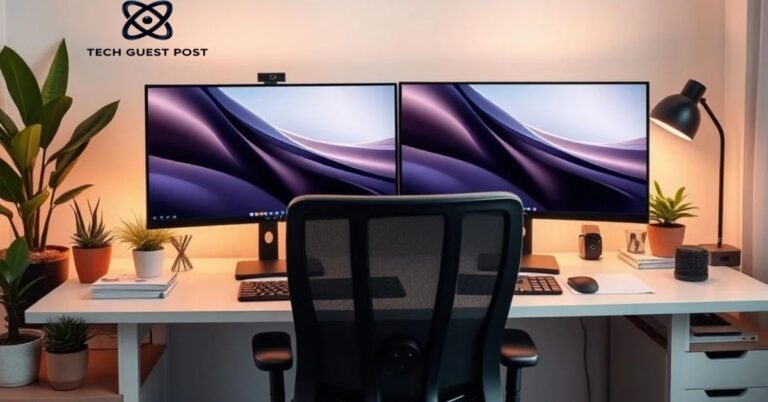
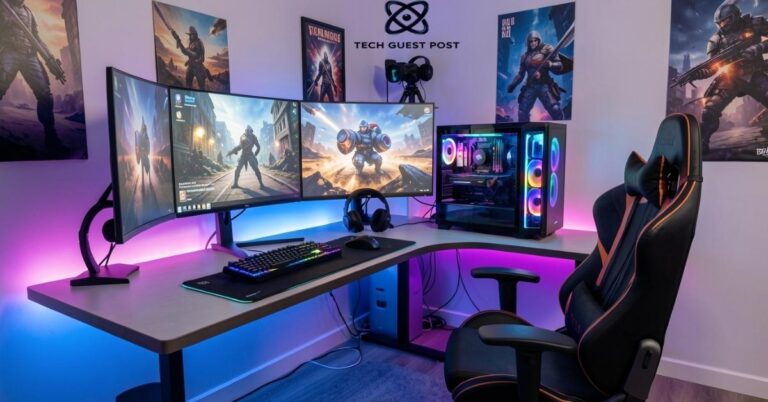
A dual monitor setup is exactly what it sounds like, two screens connected to one computer, expanding your digital workspace across both displays. Instead of clicking between windows constantly, you spread them out. Email on one screen, spreadsheet on the other. Done.
Most modern computers support this natively. Your graphics card handles the signal output and both monitors can either mirror the same image or show different content simultaneously. The second option, called extended desktop configuration, is where the real magic happens. You’re essentially doubling your screen real estate without upgrading your machine.
Why Go Dual Monitor Setup? The Productivity Benefits
Research backs this up strongly. Studies have shown workers using two monitors complete tasks up to 42% faster than those using a single screen. That’s not a small gain, that’s nearly half your time back.
Think about it practically. You’re writing a report and need to reference a document. With one screen, you’re alt-tabbing constantly. With two, you just glance right. It’s a small thing but it adds up over eight hours. Less friction, less mental switching, more flow.
Beyond pure speed, a dual screen workspace also reduces errors. You’re comparing data side by side instead of memorizing it between tab switches. For remote work, the benefits multiply, video calls on one screen, your work on the other. No more fumbling around mid-meeting.
Ergonomics and Proper Screen Placement
Here’s where most people get it wrong. They buy two monitors and just plop them down wherever they fit. Then they wonder why their neck hurts after two hours.
Proper monitor positioning ergonomics matter more than people realize. Your eyes should land naturally on the top third of the screen when you’re sitting up straight. Both monitors should sit at roughly arm’s length, about 20 to 28 inches away. Any closer and you’re straining. Any further and you’re squinting.
If you use both screens equally, center them so the bezel join sits directly in front of you. If one is your primary screen, keep that centered and angle the secondary monitor slightly inward, about 30 degrees. Office posture improvement starts with screen placement. Getting this right prevents neck strain, eye fatigue, and those nasty end-of-day headaches.
Desk lighting for productivity also plays a role here. Avoid placing monitors directly in front of windows. Glare is brutal on eyes and washes out contrast. Position your light source to the side instead.
How Do I Choose the Right Desk?
Your desk is the foundation of everything. Get this wrong and no amount of monitor arms or accessories will save you. A cramped desk forces bad ergonomics and creates a cluttered, stressful environment.
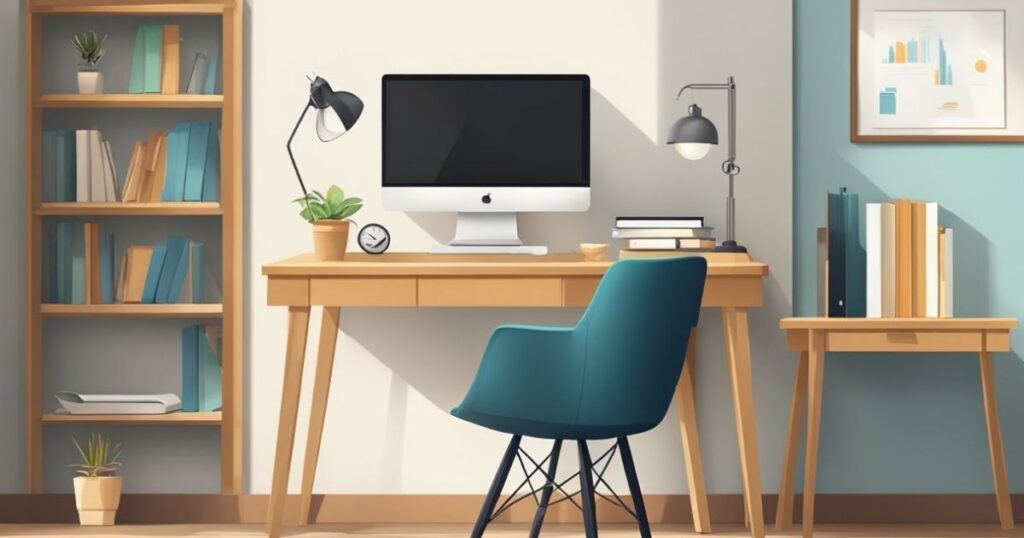
For a dual monitor desk layout, you want at minimum 55 inches of width. Deeper is better too, 30 inches of depth gives you room to push monitors back to the ideal viewing distance while keeping keyboard and mouse comfortably positioned. Adjustable standing desks are worth the investment if your budget allows. The ability to shift between sitting and standing throughout the day is genuinely good for your back and your focus.
Desk Depth, Width, and Cable Management
Depth matters more than most buyers consider. A shallow desk forces your monitors too close and leaves no room for a keyboard tray or desk accessories. Aim for at least 28 inches of depth, 30 is the sweet spot for most dual screen setups.
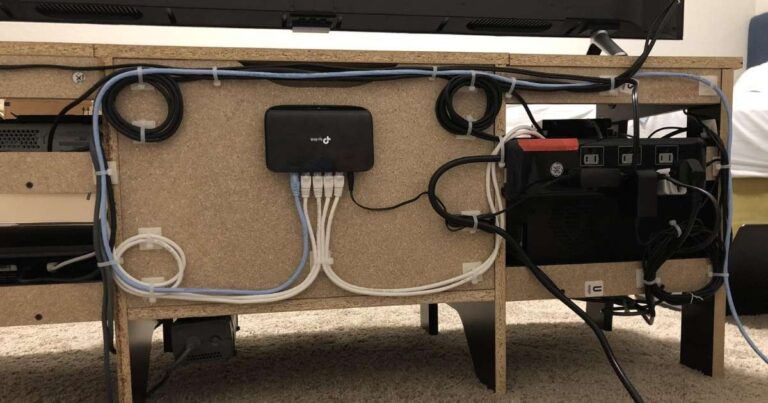
Cable management desk solutions deserve their own paragraph because messy cables are productivity killers. Use cable clips along desk edges, a cable sleeve for the main bundle running to your power strip, and a cable management tray mounted underneath the desk. A clutter-free desk environment doesn’t just look better, it genuinely helps you think more clearly.
How Do I Choose the Best Monitor Mounting Solution?
Your mounting choice affects everything from ergonomics to desk space optimization. Most monitors come with a basic stand and honestly, most basic stands are fine for casual use. But if you’re serious about your workstation, there are better options.
A good mounting solution lets you position monitors exactly where your body needs them, not where the manufacturer’s stand happens to put them. That distinction matters a lot over a full workday.
Monitor Arms, Stands, and VESA Compatibility
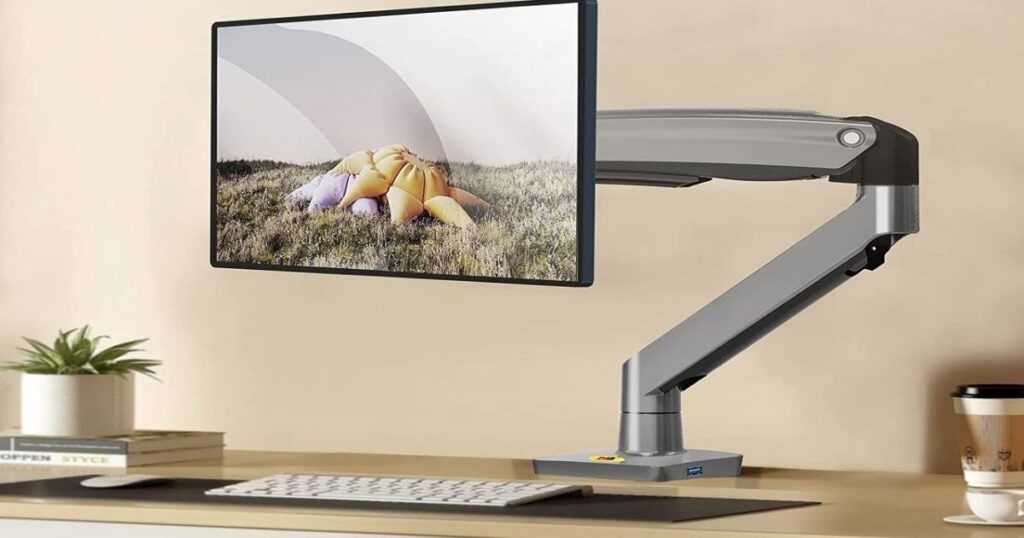
Monitor arms offer the best flexibility by far. They mount to your desk via a clamp or grommet and let you adjust height, tilt, swivel, and distance freely. This monitor arm flexibility is particularly valuable if multiple people use the same workstation at different heights.
Before buying any arm, check VESA mount compatibility on your monitor. Most displays support a 75x75mm or 100x100mm VESA pattern, just look at the back of your monitor or check the spec sheet. Workstation mounting solutions that aren’t VESA compatible do exist but they’re rare and typically less sturdy.
Height and Distance for Ideal Viewing
The top of your monitor should align with your eye level or just slightly below. This keeps your neck neutral, neither tilted up nor hunched down. Monitor viewing distance setup sits ideally between 20 and 28 inches from your face. Use the arm’s length test. Sit back naturally and extend your arm, your fingertips should just touch the screen.
Tilt your monitors back about 10 to 20 degrees. This slight backward angle reduces neck strain significantly compared to perfectly vertical screens.
Considerations for the Best Dual Monitor Setup
Picking two monitors isn’t just about size and price. Several technical factors affect whether your setup actually performs well day to day.
Resolution Considerations
Matching resolutions across both monitors is strongly recommended. Mismatched resolutions create visual inconsistency, things appear different sizes on each screen and it genuinely disrupts workflow. 1080p works fine for budget setups but 1440p has become the sweet spot for most professionals in 2026. Text is sharper, images look better and the GPU load remains manageable.
Size, Proportions, and Panel Technology
Mismatched monitor sizes create problems. If one monitor is 27 inches and the other is 24, everything feels off-balance. Matching sizes creates a cohesive, professional desk aesthetic setup that’s also more comfortable to use.
Panel technology shapes your experience considerably. IPS panels offer the best color accuracy and wide viewing angles, ideal for designers and content creators. VA panels deliver deeper blacks and better contrast. TN panels are cheaper and offer faster response times but their color quality is noticeably weaker. For most dual monitor users, IPS is the right call.
Graphics Cards and Connectivity Requirements
Your GPU multi-display support determines whether a dual monitor setup even works. Most modern graphics cards handle two or more displays without issue. Check your GPU’s output ports, HDMI, DisplayPort, or USB-C, and match them to your monitors’ inputs.
DisplayPort is generally the better choice for high resolution and high refresh rate monitors. HDMI works fine for 1080p at 60Hz but can bottleneck higher-end configurations. If your GPU only has one of each, you can still run both monitors using the available ports simultaneously.
Software Solutions for Multi-Monitor Productivity
Hardware is only half the equation. Software tools help you get the most from your extended desktop configuration. Windows 11 has solid built-in multi-monitor support with Snap Layouts. But third-party tools like DisplayFusion or PowerToys FancyZones give you much finer control over window snapping and management.
These tools let you organize apps across two monitors with custom zones, keyboard shortcuts, and per-monitor taskbars. For serious multitaskers, they’re worth every penny.
Recommended Dual Monitor Configurations by Use Case
Different work demands different setups. Here’s a quick breakdown:
| Use Case | Recommended Setup |
| Programmer / Developer | Two 27″ 1440p IPS monitors side by side |
| Graphic Designer | One 27″ color-accurate IPS + one 24″ secondary |
| Gamer + Worker | One 144Hz 1080p gaming monitor + one 24″ work monitor |
| Video Editor | One 32″ 4K primary + one 27″ 1440p timeline monitor |
| Remote Worker | Two matching 24″ 1080p IPS monitors |
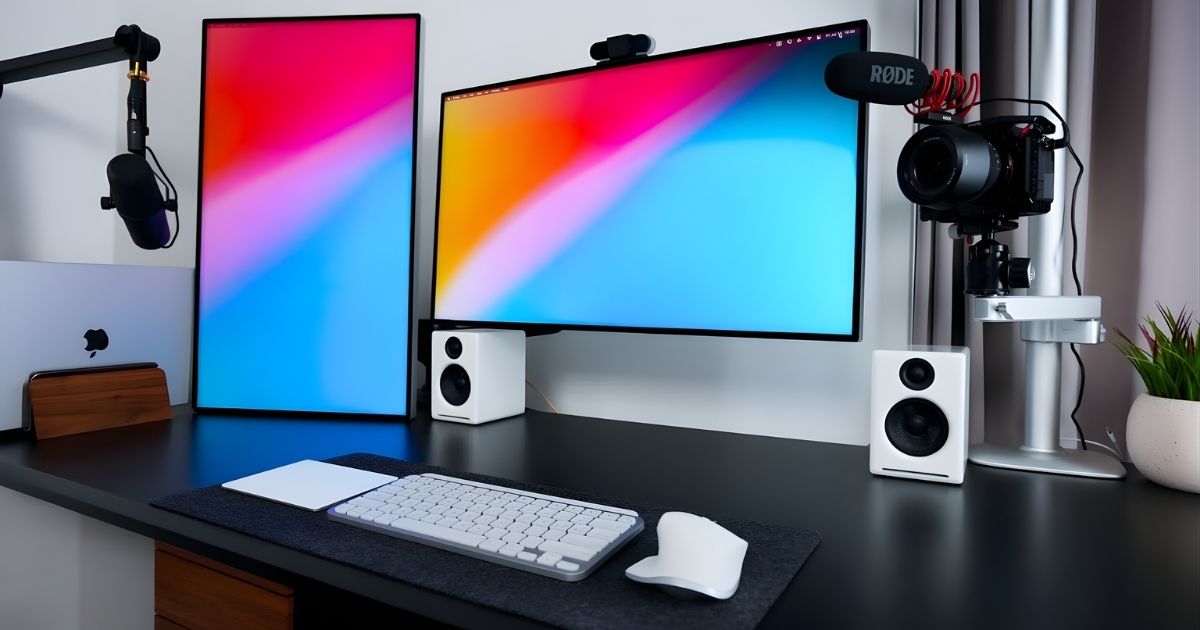
| Creative Professional | One ultrawide + one vertical stacked monitor above |
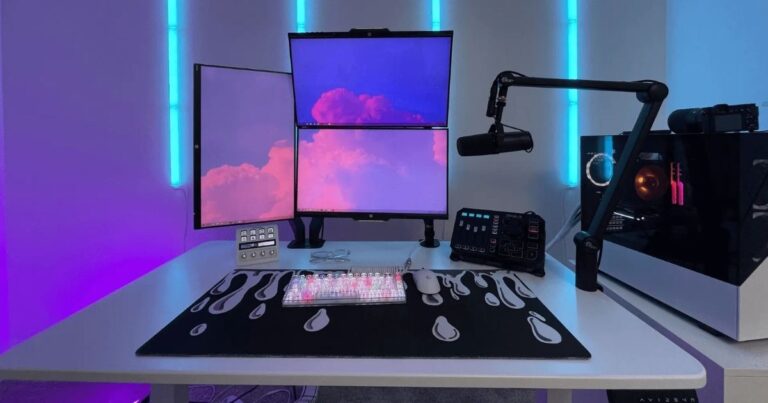
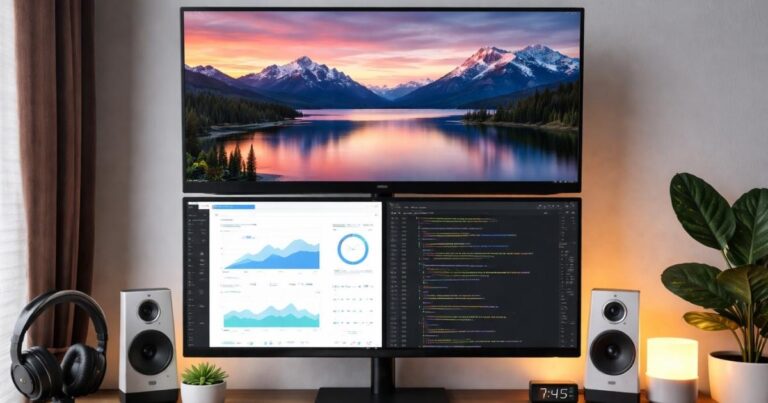
The vertical monitor layout option deserves a callout. Stacking one monitor horizontally below and one vertically above works beautifully for coders who want to see long files without scrolling. It’s unconventional but genuinely efficient.
Best Monitors for Dual Monitor Setup (All Budgets)
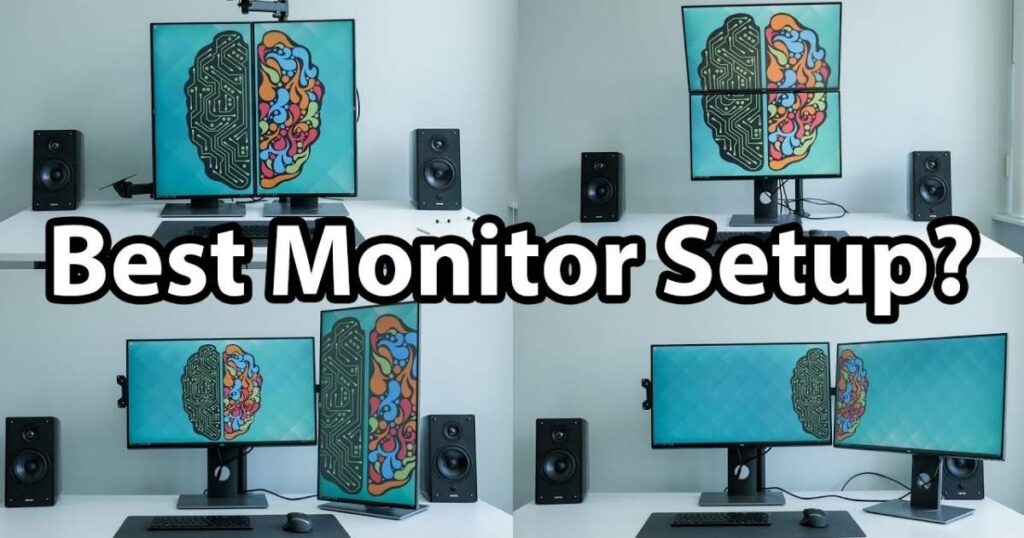
You don’t need to spend a fortune to build a solid setup. Here are strong choices across different price ranges:
Budget range (under $200 each):
- LG 27MK400H, reliable 1080p IPS, great color for the price
- AOC 24B2XH, compact, sharp, easy to pair as a secondary
Mid-range ($200–$400 each):
- Dell S2722QC, 4K IPS with USB-C, excellent build quality
- LG 27GP850-B, 1440p with 165Hz, great for hybrid work/gaming
Premium ($400+ each):
- LG UltraFine 27UK850-W, top-tier color accuracy for creatives
- Samsung Odyssey G7, stunning contrast, ideal for power users
Matching your monitors matters. Even if budget forces you to mix brands, try to match the size and resolution for the cleanest dual screen productivity workflow.
Tips for Optimizing Your Dual Monitor Setup
Once your hardware is in place, small tweaks make a big difference:
- Calibrate both monitors so color and brightness match. Mismatched brightness is surprisingly fatiguing.
- Use your dominant-eye monitor as the primary. Most people have one eye they naturally favor, let that screen carry your main work.
- Set up keyboard shortcuts to move windows between screens instantly. Windows key + Shift + arrow key does this natively.
- Keep your secondary monitor slightly dimmer if it holds passive content like email or chat. It reduces visual competition.
- Cable tie and route cables before you finalize monitor positions. Doing it after is genuinely miserable.
Workspace organization techniques matter at the software level too. Assign specific apps to specific screens consistently. When your brain knows where things live, you stop hunting and start working.
Common Mistakes To Avoid
Even experienced users trip over these:
- Mismatched resolutions top the list. It feels minor until you work with it for a day and realize how constantly disorienting it is.
- Ignoring cable management is another big one. A tangled mess behind your desk isn’t just ugly, cables catch on things, get damaged and create frustration every time you need to adjust anything.
- Skipping ergonomic setup is probably the costliest mistake long-term. Bad posture compounds over months. A few minutes spent on proper screen height and distance saves you from real physical discomfort down the road.
- Finally, don’t forget refresh rate matching when possible. Using a 144Hz monitor next to a 60Hz monitor for work tasks usually isn’t noticeable but for gaming it can cause weird visual inconsistencies depending on your GPU settings.
FAQ’s
What is the ideal distance for dual monitors?
Place your monitors 20 to 28 inches from your eyes. Use the arm’s-length test, fingertips should just reach the screen when you extend your arm naturally.
Do I need a special graphics card for two monitors?
Most modern GPUs support dual monitors out of the box. Just ensure your card has two video outputs, HDMI, DisplayPort, or USB-C, and you’re set.
Should both monitors be the same size?
Ideally yes. Matching sizes create visual consistency and reduce ergonomic strain. Mismatched sizes work but can feel awkward over long sessions.
Is a monitor arm worth it for a dual setup?
Absolutely. A monitor arm frees up desk space, allows precise positioning and dramatically improves ergonomics compared to standard stands.
Can I use a laptop with a dual monitor setup?
Yes. Most laptops support at least one external monitor via HDMI or USB-C. With a docking station, you can often drive two external displays simultaneously.
Conclusion
Building a solid dual monitor setup isn’t complicated but it does reward careful thought. Start with the right desk. Get your ergonomics dialed in before anything else. Match your monitors where possible and invest in a decent arm if your budget allows.
The dual monitor setup pays for itself quickly, in time saved, focus maintained, and frustration avoided. Whether you’re building it for work, gaming, creative projects, or all three, the investment is worth it. Set it up right once and you’ll wonder how you ever managed with just one screen.

Evan Cole is a tech enthusiast and digital strategist with years of experience in content marketing and SaaS trends. He explores emerging technologies, AI innovations, and SEO-driven growth strategies. Evan’s insights help readers understand complex tech topics through practical examples and real-world applications that inspire smarter digital solutions.